Showing posts with label AutoLisp. Show all posts

Wednesday, October 25, 2023

AutoCAD Web and AutoCAD LT

 Seems like it's been a long time coming but here are 2 major developments to come out of Autodesk related to its flagship product AutoCAD. 

AutoCAD Web

AutoCAD Web

Honestly, I almost didn't even try this one. I looked over some of the material online and there was not enough to perk my interest. I did finally enroll in a 1 month test which cost a whole 15$ CDN. I was surprised at how easy it was to transition from my old ACAD habits to this product. Then the hey not bad wore off quickly. Copy and paste from one file to another was non existent. Blocks seemed to be constricted to one drawing (unless you setup a library in the desktop version) One file open at one time, and unfortunately slow. So back to AutoCAD LT for my 2D drafting needs.

AutoCAD LT & AutoLISP

Damn, Mabel they finally done it.! Yup AutoCAD LT finally includes the ability to load AutoLISP routines. Back in ummmm what was it now 1992 (or something).? when LT was first introduced it, was supposed to include LISP, and then the powers that be pulled it at the last minute. It was probably a good decision for Autodesk as many people rely on those LISP routines to make themselves truly productive. Well thank you Autodesk for finally giving the users that can't justify the cost of a full blown version of AutoCAD something we have needed for a while now.

Thursday, July 10, 2014

Update to Window AutoLisp

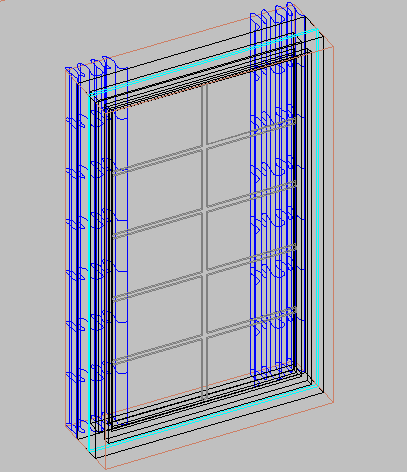
I've noticed that many people have been downloading the window lisp routing I created for AutoCAD. I hope that those people are finding it useful. I decided to add a few new features that will make the windows more attractive.

To download the new updated command click here

The original window is described on the following page:

Before getting started, as with the original window, you must place the UCS to be parallel to the face of the wall, positive x pointing to the right, and positive y pointing up, positive z pointing away from the screen.

First, a routine called mullion to add horizontal and vertical mullions to the outside of the window. Once a window is created, you can type Mullion at the command prompt, and you will be prompted for a lower left corner, then upper right corner of the window. These should be placed on the part of the frame just outside of the glass.


Then when prompted indicate the number of horizontal and vertical mullions.


The second new feature is to create an open curtain inside the window. This works much the same way as previous commands. simply pick 2 points to indicate the lower left, then upper right. In this case the points should be on the inside of the window frame.


The end result should look as follows.

Saturday, April 19, 2014

New AutoLisp for 3D Pivot Door

I've been working on a simple pivot door script to use in AutoCAD. You can download the file here.

Here is how the script works.

Command: sd 
Chose the wall to insert the door: (Select the 3D Solid that represents the wall)
Select objects: 1 found
Select objects: (press enter to finish the selection) 
Pick lower left corner of door: (pick location on the hinge side of the door)
Pick upper left corner of door: (pick a perpendicular point on the other side of the wall) 
Indicate width of door: 36 
Indicate height of door: 80


Enjoy..


Saturday, January 18, 2014

AutoCAD Lisp Command to Draw Windows

Although there are a number of ways to create architectural 3D CAD Models, AutoCAD still remains as a major modeling tool in my day to day work. The problem remains that AutoCAD does not contain the modeling capabilities of Revit Architecture. So I have spent a fair amount of my down time at my job developing tools to accelerating 3D modeling within (vanilla) AutoCAD. I thought I would share with you some of my experience, and develop some new commands that you can have fun with, and hopefully help you with some of your AutoCAD modeling projects.

Here is a command which will create a simple window based on selecting 2 points on an opening which has been created in the facade of building.


The UCS should be oriented parallel to the face of the building. Then you would select the lower left corner followed by the upper right corner. The window is then created automatically.

The window command creates 2 layers for the window frame and glass, and places those objects on those layers automatically. In the above illustration, I've recessed the objects by moving them after the fact to improve the illustration.

You can download the Lisp routine here

Or use the following URL: http://www.mediafire.com/download/pav98m98q418r9q/Window.lsp

Have a good one, cheers


Update to Window.lsp click here

Wednesday, August 22, 2012

New Lisp routine for Soffits

This week I had some free time at work and created a soffit AutoLisp routine. After Selecting the Facia, and indicating the 3 points of the facia slope, it prompts for the depth of the soffit. The rest is Automatique..!